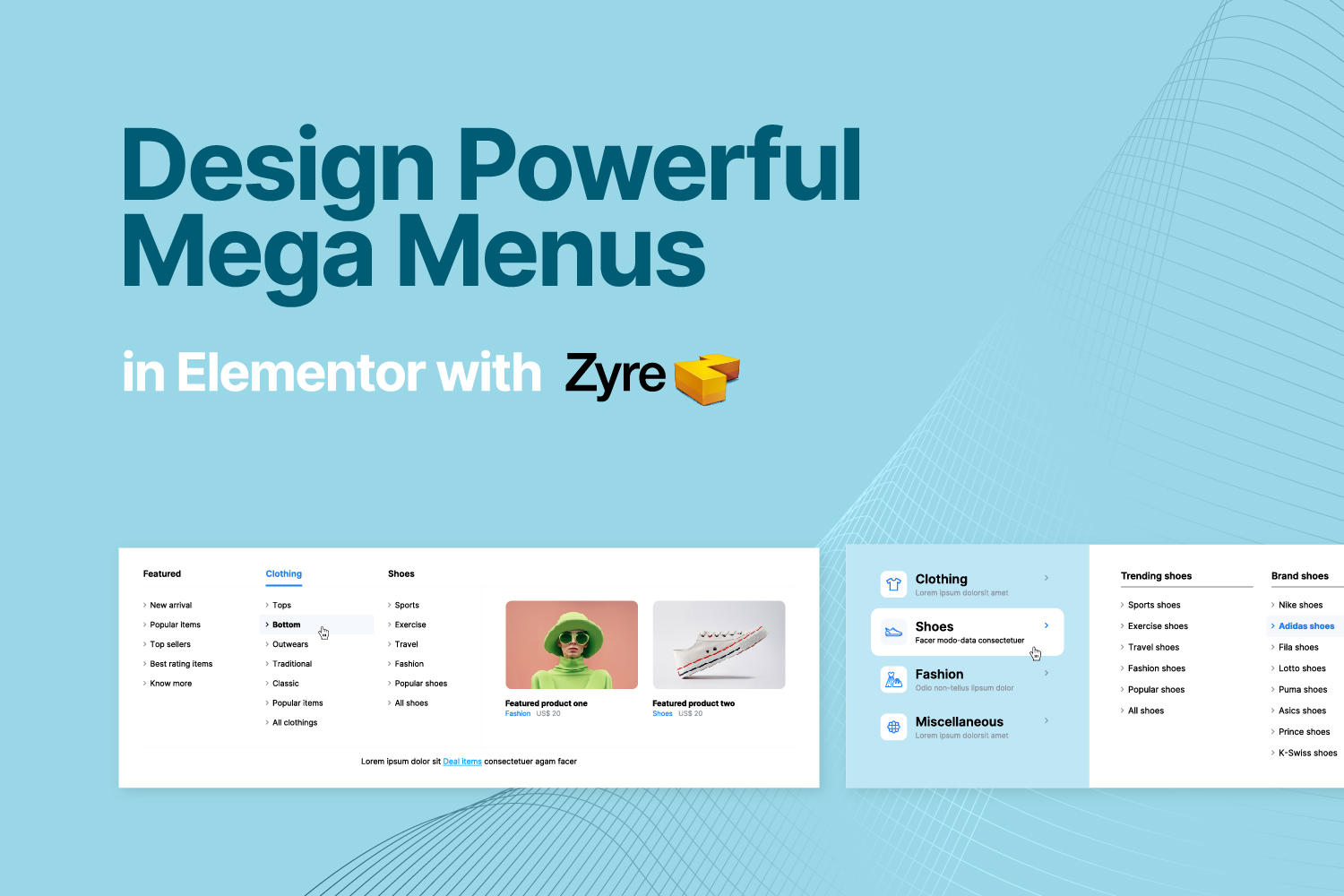
Introduction
A well-structured navigation menu can completely change how users interact with your website. But when your site grows, a simple dropdown menu just isn’t enough.
👉 You need a mega menu.
With Zyre Addons, you can create a powerful mega menu directly from your WordPress menu settings—no complex setup, no extra plugins.
In this guide, we’ll walk through the exact steps based on your dashboard interface.
What You’ll Be Using
To create a mega menu, Zyre Addons provides:
- A Mega Menu toggle in WordPress menu settings
- A Zyre Menu button for individual menu items
- Full Elementor design control
👉 Everything is integrated into your existing menu system.
How Zyre Addons Solves This?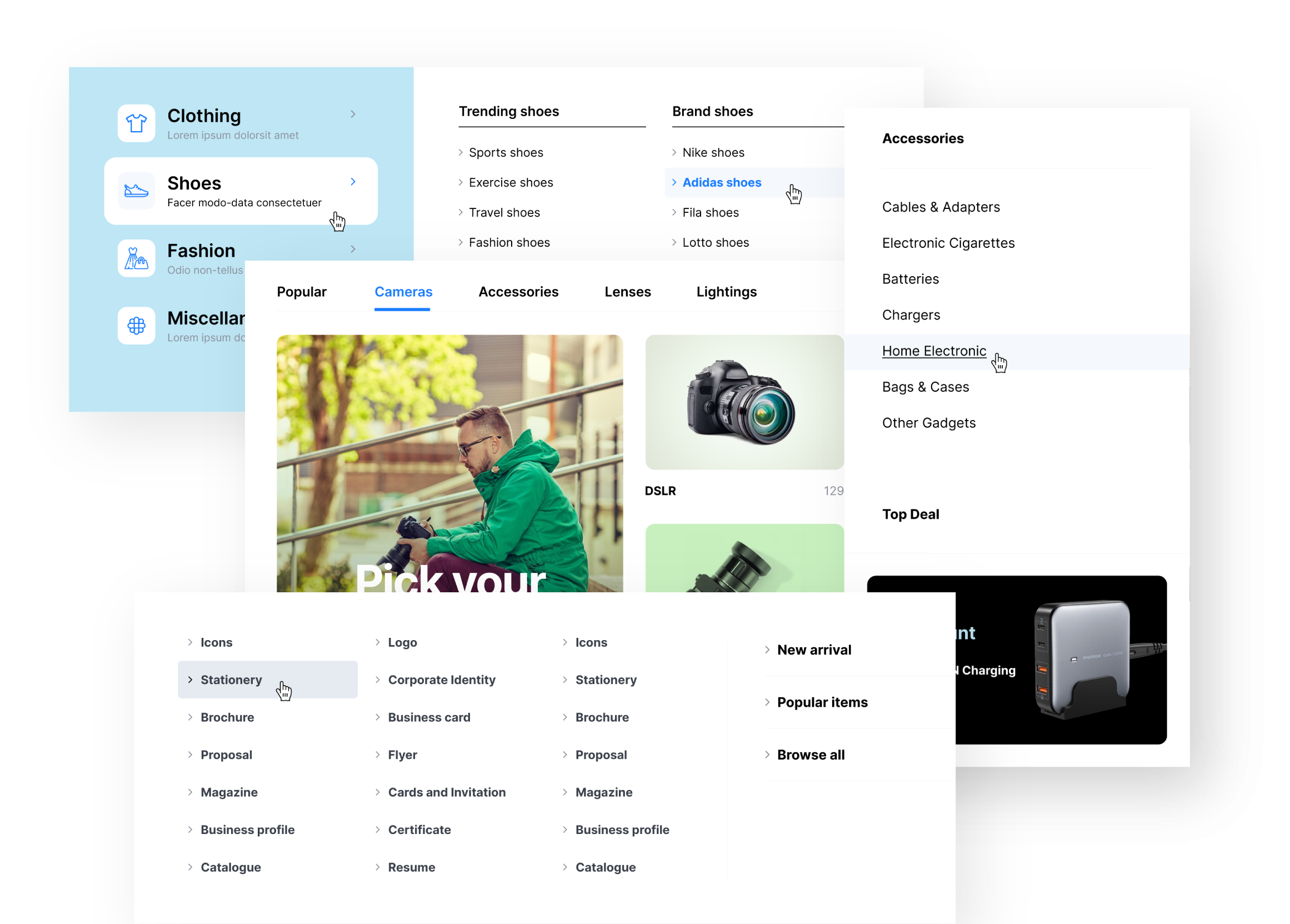
Zyre Addons provides a Mega Menu widget for free, giving you full control without extra plugins.
👉 Simple setup + powerful features.
⚡ Key Features of Zyre Mega Menu
🎨 1. Advanced Layout Control
You can create:
- Multi-column dropdowns
- Structured category layouts
- Custom menu designs
👉 Perfect for complex websites.
🖼️ 2. Add Rich Content Inside Menu
Unlike basic menus, you can include:
- Images
- Icons
- Buttons
- Custom widgets
👉 Turn your menu into a content hub.
🎯 3. Prebuilt Styles + Full Customization
- Use ready-made styles
- Or design everything from scratch
👉 Flexibility without limitations.
🚀 Step-by-Step: Create a Mega Menu
🔧 Step 1: Go to Menu Settings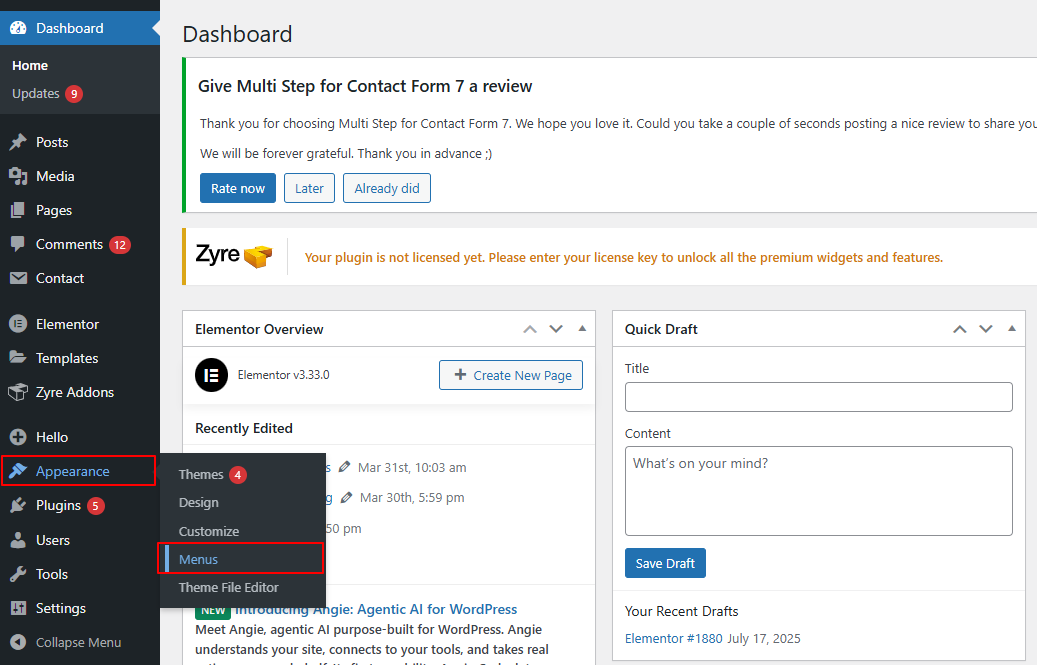
- From your WordPress dashboard
- Go to Appearance → Menus
👉 This is where you manage your navigation structure.
⚡ Step 2: Enable Zyre Mega Menu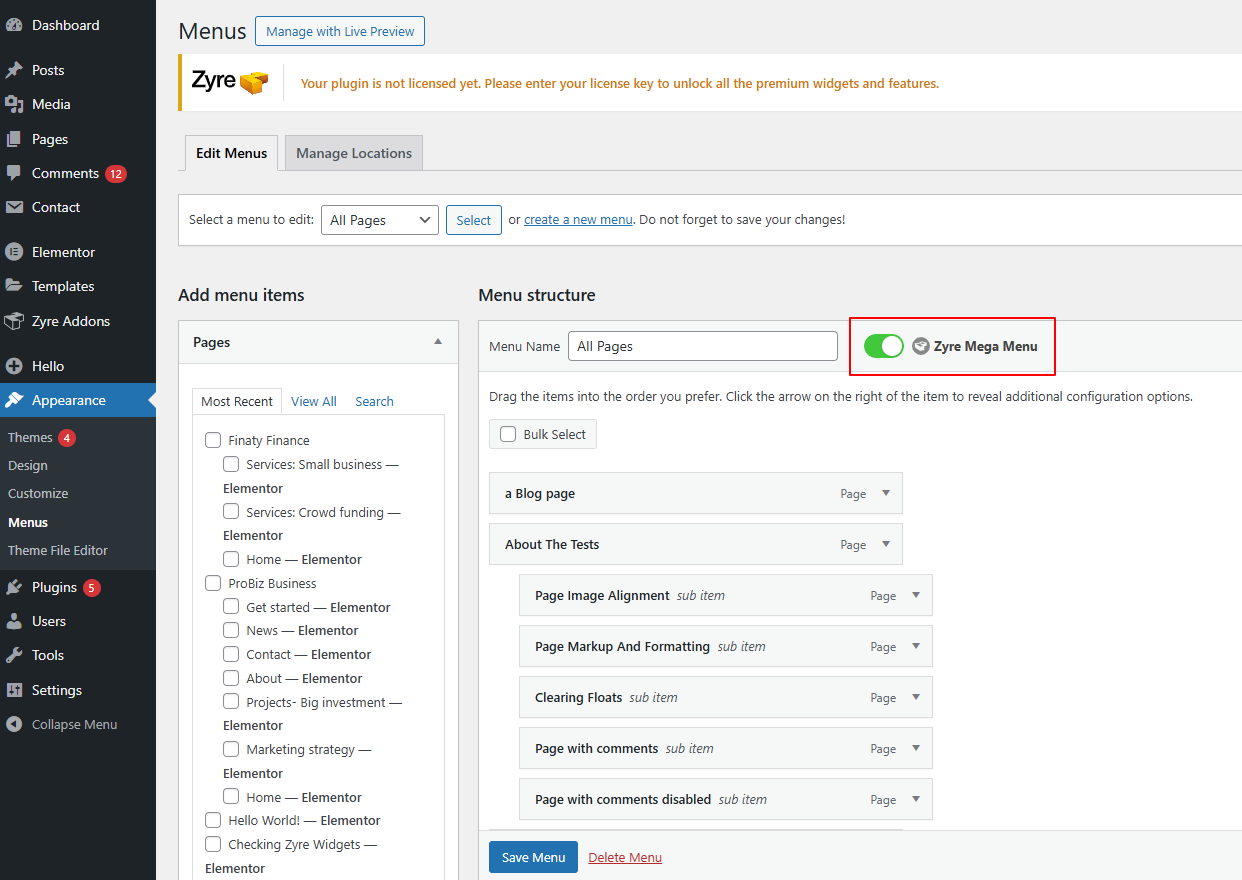
Inside the Menu Structure section:
- You’ll see a toggle labeled “Zyre Mega Menu”
- Turn it ON
👉 This activates mega menu functionality for your menu.
🧩 Step 3: Select a Menu Item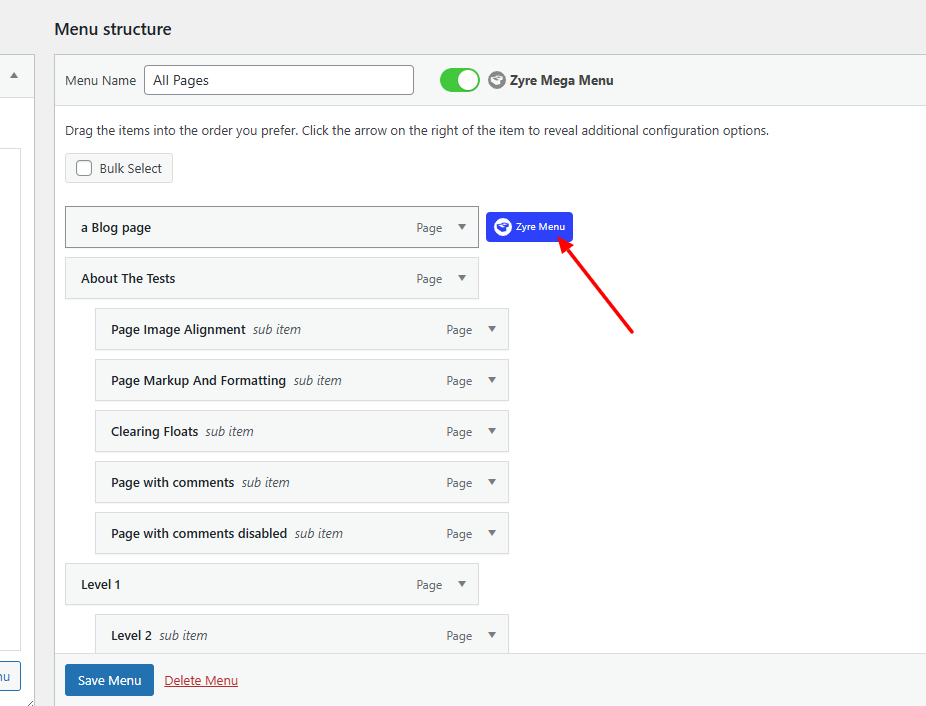
Now:
- Choose the menu item where you want the mega menu
- Example: “Blog page” (as shown in your setup)
👉 This will act as the parent item for your mega menu.
🎯 Step 4: Click on “Edit Mega Menu Content” Button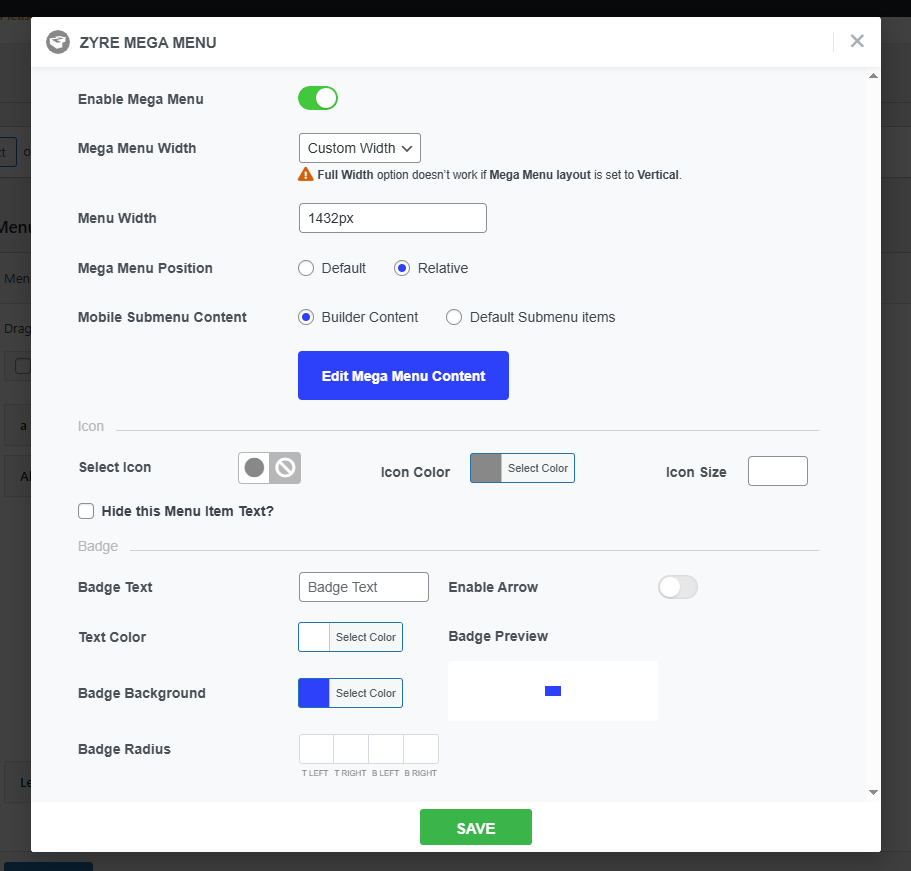
For the selected menu item:
- Set menu width and others options for making the menu design.
- Enable Mega Menu toggle.
- Click the “Edit Mega Menu Content” button to design mega menu on Elementor.
👉 This opens the mega menu design interface.
🎨 Step 5: Design Your Mega Menu Layout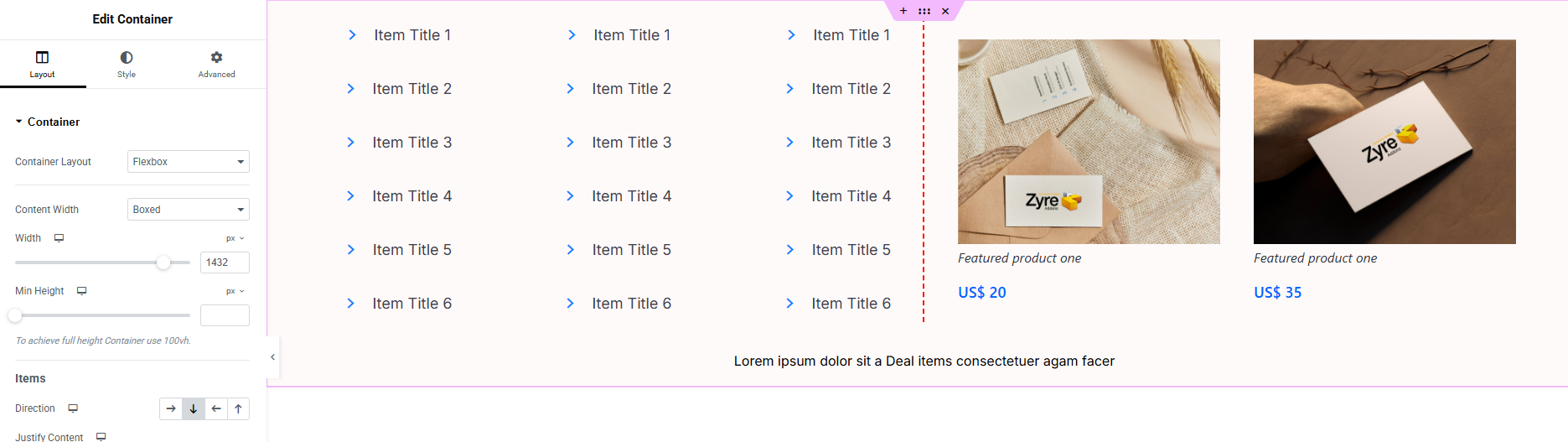
Now you’ll be inside Elementor.
Here you can:
- Add sections and columns
- Insert widgets (images, text, buttons, etc.)
- Create multi-column layouts
👉 This is where your mega menu becomes powerful. It’s not just a menu—it’s a full content layout.
💾 Step 7: Save Your Menu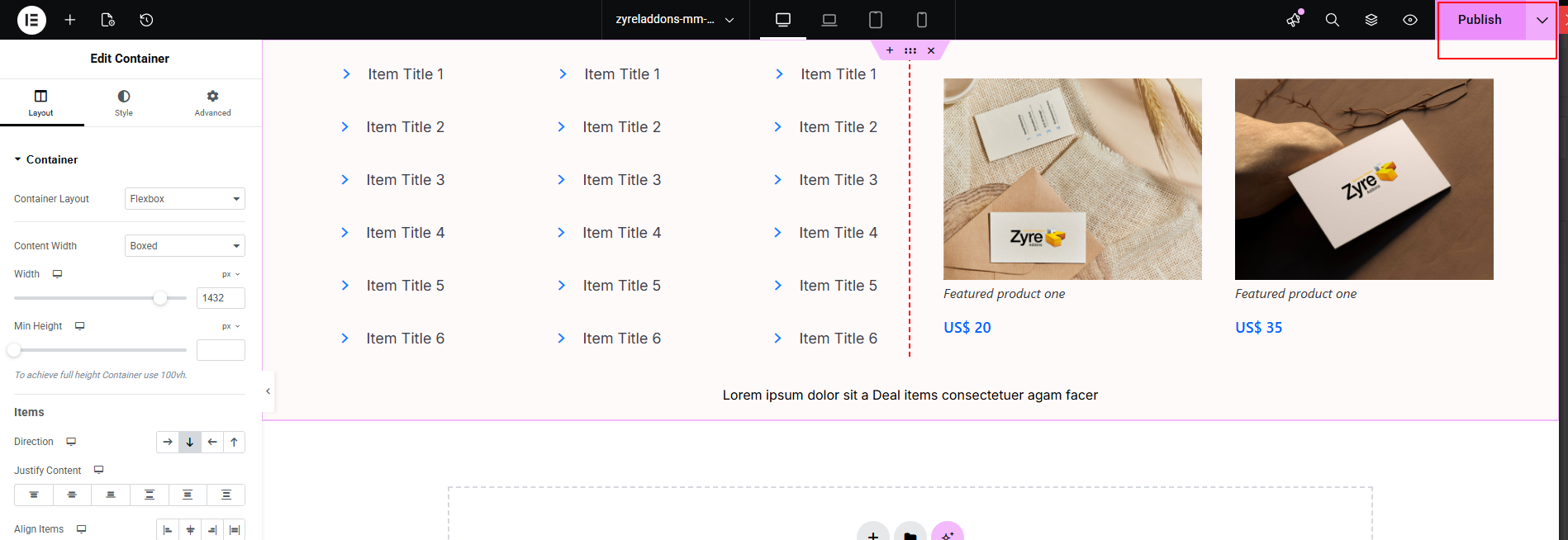
After designing:
- Publish your Elementor layout
- Go back and click Save Menu
👉 Your mega menu is now live.
Real Use Case Examples
🛍️ eCommerce Websites
Show categories, products, and offers.
📰 Blogs & Magazines
Display categories, posts, and highlights.
🏢 Business Websites
Organize services, pages, and resources.
Why Zyre Mega Menu is Different?
💡 Free Advanced Feature
Most plugins charge for this—Zyre Addons gives it free.
⚙️ All-in-One Solution
No need for separate menu plugins.
⚡ Lightweight & Fast
Optimized for performance.
🔥 Built for Real Projects
Designed for practical use—not just demos.
Pro Tips for Better Mega Menus
- Keep structure simple and organized
- Avoid overcrowding
- Use icons and visuals wisely
- Highlight important links
👉 Good design = better navigation.
Final Thoughts
A mega menu can completely transform your website’s navigation.
But most solutions are either:
- Expensive
- Complicated
- Limited
Zyre Addons makes it simple, powerful, and free.
👉 You get advanced navigation without extra plugins or cost.
Download Zyre Addons from WordPress